Student Presentations Videoed

Image

When my students make group presentations, I like to offer them a video of their performance to supplement and strengthen my feedback to them on what they did well and what they need to improve. Today, with the help of a student videographer and the iPad app Capture, I found an easier way to give them access to their video.

First, because their presentation was longer than 15 minutes, I had to prepare my YouTube account to accept that. On the advice of a student, I went to https://support.google.com/youtube/answer/71673?hl=en to find out how to do that. Once I had verified myself with my phone number, I was allowed to upload longer videos to YouTube. So then it was time to video their presentation. I handed my iPad with the Capture app to a student and she used it to video the presentation.

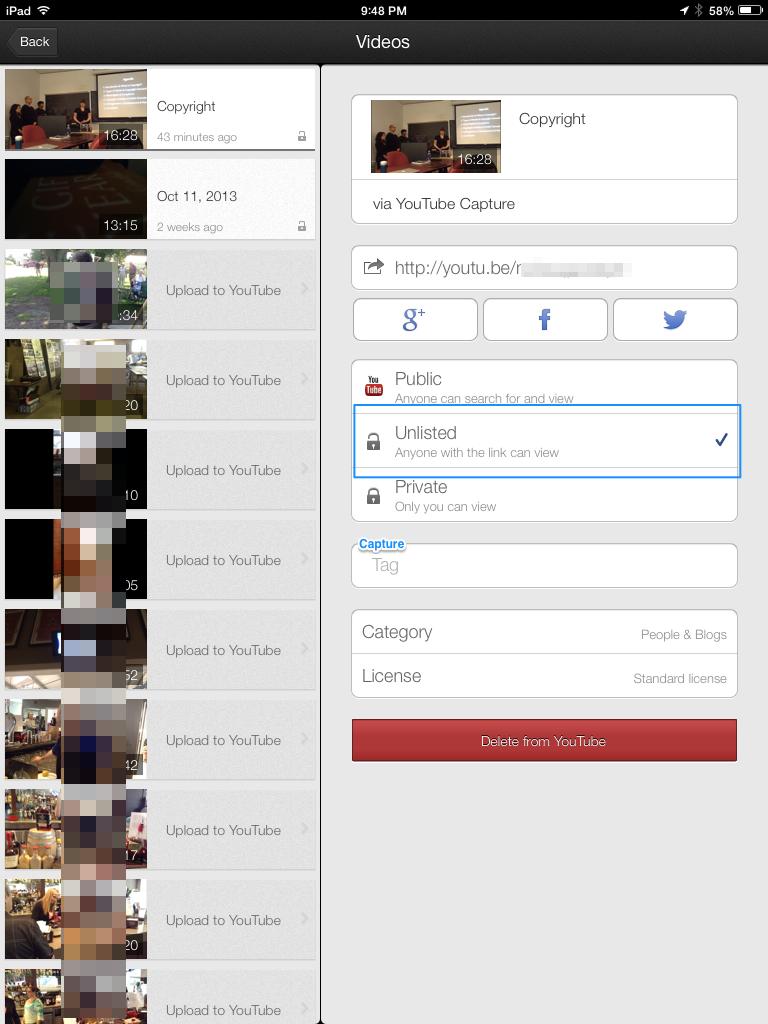
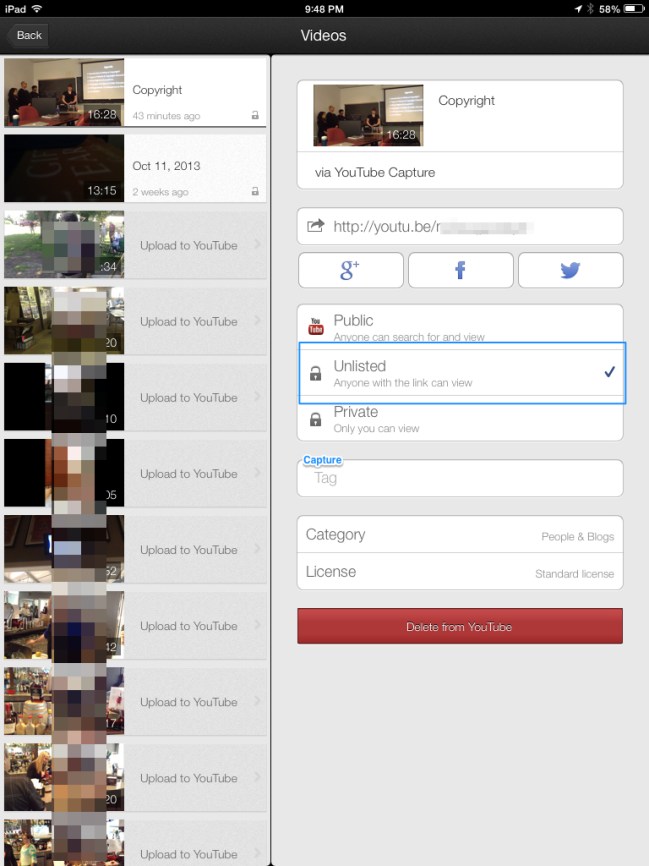
I have used videos before, but I always found porting the video to my computer and then uploading it to YouTube or Vimeo took many times longer than the video itself. I found it onerous. This time, I received my iPad back from my student videographer, and clicked “Upload”. This is the screen I saw:
Image

I chose the “Unlisted” posting, to give students their privacy. Only those with the link will be able to see the video. I use Wikispaces for my course container, and simply posted the link to the YouTube video of their presentation in their Project page, which only members of the group can access. I could have simply emailed the link out to them. Either way, they have control of the privacy level of their video. They can share the link, or not.

This process, using an iPad with the Capture app which is linked to YouTube, is so much easier than my previous process of uploading videos of student work, and I can give them privacy.

Dyscalculia

I’ve just read a very interesting post on a version of dyslexia that deals with numbers –  http://www.bdadyslexia.org.uk/about-dyslexia/schools-colleges-and-universities/dyscalculia.html and now I understand a lot more about how my mind works, and doesn’t work.

I have trouble with left and right, and trying to read maps is painful and embarrassing. I also switch numbers (1,2,4,3,5 etc.) if I try to read them quickly. I have to be VERY careful with large numbers as I can confuse 1000 with 10,000, etc. Plus it’s very hard for me to remember telephone and other numbers, even dates in history. So I think I have dyscalculia. I am also mildly dyslexic, and have some trouble with spelling, but I love words and writing. Despite those limitations, or maybe because of them, I’ve been told repeatedly that I’m a good teacher, good at helping people learn.

I am deeply grateful that I was able to learn and develop tactics that allowed me to survive and thrive as a student and as a teacher. Both as a teacher and as a learner I have observed that people often don’t remember how they learned something; we just own and use what we’ve learned and move on. So I can’t remember how and from whom I learned my tactics for surviving my weaknesses by adapting my strengths to cover for them. The only way I can express my gratitude is to show others alternate learning and performing routes that might work for them. And share with everybody what I learn about how our human minds work, and how differences in how they work can be dealt with compassionately.

Giving people the space and opportunity to learn how they learn, and how they can deal with their weakness as well as their strengths is not only wise and kind, it creates a better world for all of us.

If you are reading this and think you might be dyscalculic, check out your sense of self-worth and see if you have learned to focus on adaptations to help you survive, or if you dwell too much on what you struggle with. Perhaps you need to acknowledge how hard you work, as much as what you can’t do easily. To boast and inspire, I eventually got my Ph.D. and posted my thesis on line –  http://www.scribd.com/mobile/doc/2063617 and here’s my not quite up-to-date e-portfolio – https://joanvinallcox.wordpress.com/my-e-portfolio/

Mapping the Wilderness

To sample a poem from my recently published collection – available from http://www.blurb.com/b/4591664-mapping-the-wilderness – listen to me reading –

Approaching Sixty, I See That … https://soundcloud.com/joanvinallcox/at-midlife-i-see-that  – Hope you find it meaningful, and perhaps buy a copy of my collection.

Courage at eighty is different from at twenty
But both ages carry their future constantly –
A fearsome thrust into an unmapped wilderness.

To carry your future at twenty is to seek
The wilderness because it must be mapped
And shaped. There are roads to clear and homes
To build, and no one has given you a plan
For your wilderness, (just the one they didn’t use in theirs).
So you thrust forward, knowing too little and enough,
Building blindly wherever you find a clearing, lifting
The log of your childhood so it bridges your fears,
Confident that it might not collapse on you.

A fearsome thrust carrying life forward blindly
At eighty requires enough love to endure
Despite loss, and endure because of loss to come,
And endure because of the sweetness still here, if
Courage persists. And, despite (because?) the compass pointing
Through the wilderness to the edge of the map,
Tells a tale seen over and over about endings, despite this,
To work through today knowing
too much, and not enough, about tomorrow.

Courage at eighty is different from at twenty
But both ages carry their future constantly –
A fearsome thrust into an unmapped wilderness.

Getting Rid of the Inbox Tabs

My 93 year old uncle inspired these posts on gmail’s new tabbed inbox. He didn’t want all the tabs; he just wanted the untabbed inbox. For him, like for many other people, the untabbed inbox fits their email needs, and gmail gives them information on how to set up that choice

All this information comes from Google Support – https://support.google.com/mail/answer/3055016?hl=en

How to return your gmail inbox to its untabbed state.

First, click on the + sign on the right of all the tabs –

gmail's tabs and where to click to start changing them
gmail’s tabs and where to click to start changing them

Second, unclick all the tabs you don’t want –

gmail tags to uncheck

Don’t forget to click on “Save”.


And that’s it!

Why I Like gMail’s New Tabbed Inbox

This might make some of the people and organizations that send me emails unhappy, but why I like gmail’s new tabbed Inbox is because it makes it so easy to sort my mail, and throw out what I’m not interested in. Let me explain. I sign up for lots of stuff; I like having blogs I follow come into my inbox rather than using RSS.  and a Reader. Lots of people, especially the highly tech-able ones, may criticize that, but it’s my habit, and I’m sticking to it. What this means is I get a lot of mail, and only some of it interests me. gMail’s new Inbox makes it easy for me to continue in my subscribing habits without being too overwhelmed or annoyed by piles of messages. Here’s what I do:

After checking my Primary tab for personal and important messages ( To learn how move messages so they land in your Primary tab – see https://joanvinallcox.wordpress.com/2013/08/21/gmails-new-inbox-tabs/ ) I go to one of my other tabs. The first thing I do is click the little box just above the Primary tab.

Select all above the Primary Inbox in gmail

This will select all the messages in that tab.

All messages are selected in this tab

(This works best on my laptop, and not so easily on my tablet or phone.)

I de-selecting the messages I want to keep, which I find easier than individually selecting the ones I have no interest in.

Once I’ve done separated out the ones I want to read, – –

gmail tabbed inbox with some messages selected

I simply click on the trash can –

gmail's Trash
gmail’s Trash

and all the checked and highlighted messages that I don’t want disappear. Easy and time-saving. I could individually check the boxes on the ones I don’t want, but I find it emotionally easier to make one (large) negative selection by clicking the box at the top, and then saving (unchecking) the ones I do want.

The nest and final post will explain how to get rid of the tabs and go back to the previous plain, untabbed gmail Inbox. Coming soon.

The New gMail Inbox’s Other Tabs

gMail has a new structure for its inbox. The Primary tab is the one that opens first and is the most important because it contains your personal messages – as described previously – https://joanvinallcox.wordpress.com/2013/08/21/gmails-new-inbox-tabs/

The Other Inbox Tabs

The slightly altered image below is from (and linked to) Google Support – https://support.google.com/mail/answer/3055016?hl=en

https://joanvinallcox.wordpress.com/2013/08/21/gmails-new-inbox-tabs/
The New gMail Inbox Tabs

As well as the Primary tab, there are Promotions, Social, Updates, and Forums. Depending on your web activities you may only need some of them. For example, if you have set up a Groupon account, or other promotional sites, those messages will automatically go under the Promotions tab.

Here’s how it looks:

gMail Inbox's PromotionsTab
gMail Inbox’s Promotions Tab

You can see the kind of messages that land in the Promotions tab. Remember, if you want messages from a particular source to land under a different tab, all you have to do is drag the message to the tab you want, and then, when “Do this for future messages …?” appears just above the tabs, choose “Yes”.

You may have noticed that I changed the order my tabs are in to suit my interests. I’m more interested in what comes in under my Social tab than what’s under my Promotions tab.

Another thing to notice, I have “1 new” message waiting in my Social tab. Each tab shows how many new messages are waiting for you there. Sometimes I want to know what’s in my Updates tab right away because I’m expecting a confirmation. Usually, I leave checking my Forums tab till I have some free time.

—–

Not finding the new tabbed inbox a good fit for you? I’ll blog about how to limit your tabs or even return to a single, tabless, inbox soon.

gMail’s New Inbox Tabs

What I like about having my mail automatically separated into 5 mailboxes:

Screen Shot 2013-08-21 at 12.02.03 PM

My Primary Inbox

I go there first to see all my personal email. It’s addressed to me. Google Help explains it well:

Primary Inbox
Primary Inbox

Moving Message from One Tab to Another

I’ve found I can pull emails from other tabs into my Primary Inbox and set them to always land there. This is good for my favorites:

For example, Facebook notifications automatically arrive in my Social tab. I can simply drag the message into my Primary Inbox, then choose “Yes” to have all my future Facebook notifications land in my Primary Inbox. Cool, eh?

Moving messages to my Primary Inbox

More soon on why the other Tabs are handy.

When Obligations Collide


Totems

When obligations collide, my heart unfolds.
I try to read what is written for tomorrow
without my glasses. I must decide.
This slippery road leads me into strange spaces.
The centre collapses unexpectedly, but the periphery
may knit into a new street view. I search.
Steering blindly by what is yet hidden
I try to avoid the road rages of others
and drive cleanly into the mystery. I meditate.
 May 1, 2013 – Joan Vinall-Cox