Getty Offers Copyright Safe Images

Responding to @dougpete, I’m adding some more information about copyright safe practices, this time with images. As described in the previous post on safe sounds for podcasting – https://joanvinallcox.wordpress.com/2014/02/28/safe-sounds-for-podcasting-canada-2014/ Creative Commons and, using Creative Commons licenses, Flickr, provide copyright safe images. On Google Images, you can find safe content, if you search under Tools.
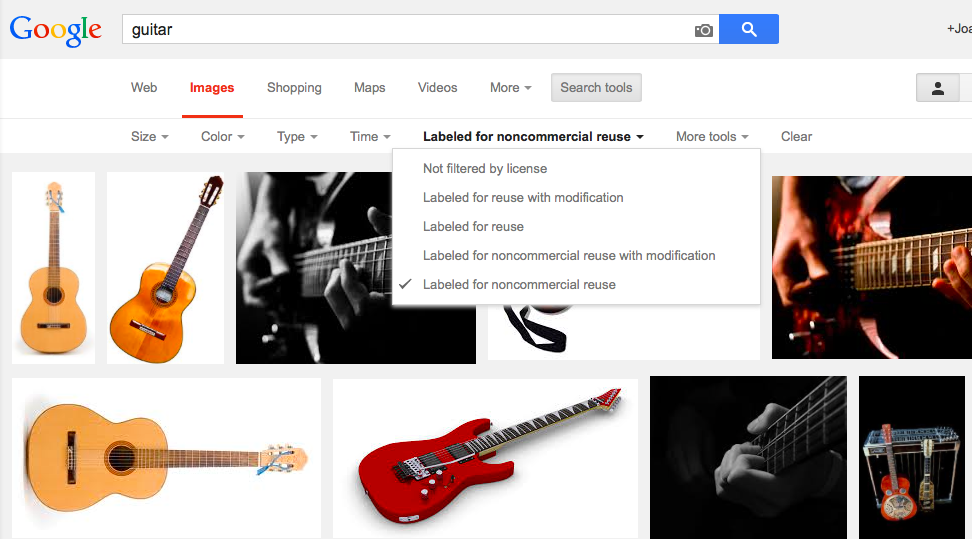
Searching Google Images

However, the exciting and savvy new move by Getty, as described by CNN – http://www.cnn.com/2014/03/06/tech/social-media/getty-free-pictures/ – adds more options for images to use, at the same time as making misusing the images using screenshot etc. far less interesting. All Getty asks is that you embed the image, giving them credit and a link back to their site.

The embed icon looks like – </> and takes you to the code.
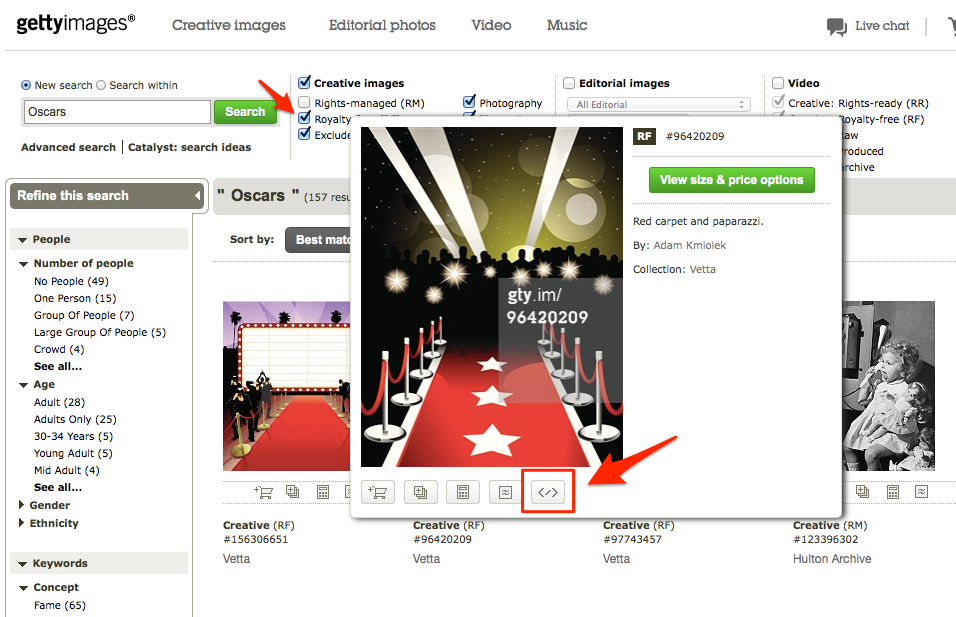
GettyEmbed

And this is what you get –
Embed from Getty Images
Learning by Playing Around

photo

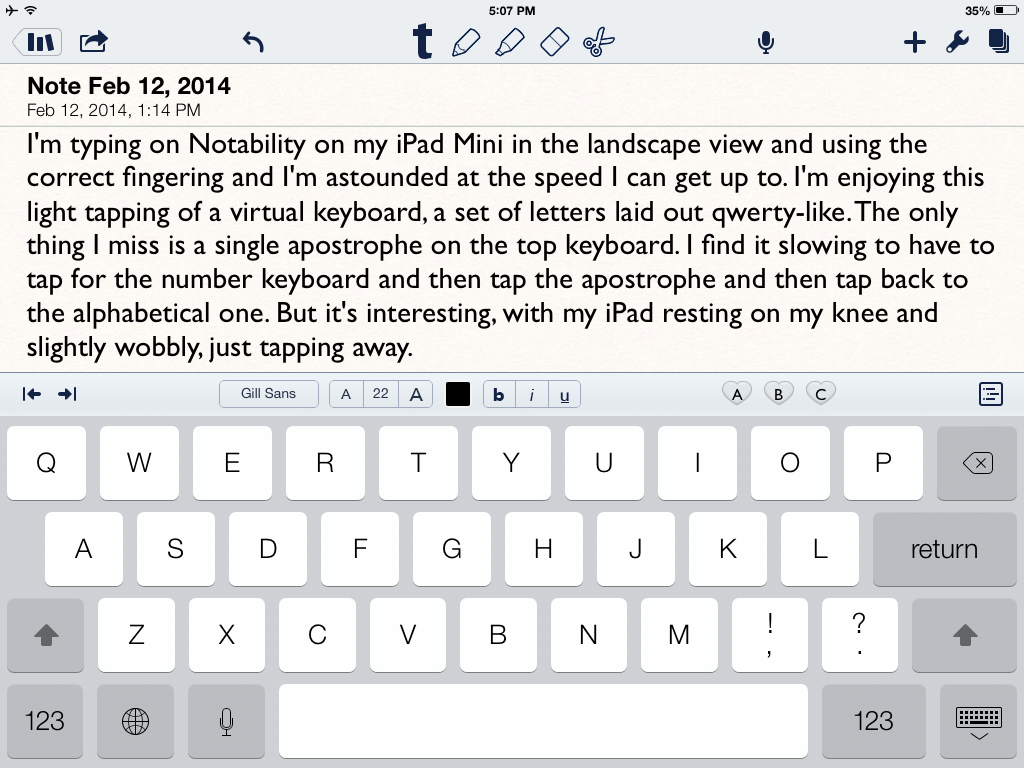
I’m typing on Notability on my iPad Mini in the landscape view and using the correct fingering and I’m astounded at the speed I can type with. I’m enjoying this light tapping of a virtual keyboard, a set of letters laid out qwerty-like.The only thing I miss is a single apostrophe on the top keyboard. I find it slowing to have to tap for the number keyboard and then tap the apostrophe and then tap back to the alphabetical one. But it’s interesting, with my iPad resting on my knee and slightly wobbly, just tapping away.

I’m hungry and I’m playing a little. I just found out that I can type a small “i” and it will automatically turn into uppercase. If I type “im” it will automatically become I’m. I wonder what will happen when I type “its”. Yup, it converts; it’s given an added apostrophe automatically. I had to use a semi-colon to need to get at the numerical keyboard. Good to know.

Student Presentations Videoed

Image

When my students make group presentations, I like to offer them a video of their performance to supplement and strengthen my feedback to them on what they did well and what they need to improve. Today, with the help of a student videographer and the iPad app Capture, I found an easier way to give them access to their video.

First, because their presentation was longer than 15 minutes, I had to prepare my YouTube account to accept that. On the advice of a student, I went to https://support.google.com/youtube/answer/71673?hl=en to find out how to do that. Once I had verified myself with my phone number, I was allowed to upload longer videos to YouTube. So then it was time to video their presentation. I handed my iPad with the Capture app to a student and she used it to video the presentation.

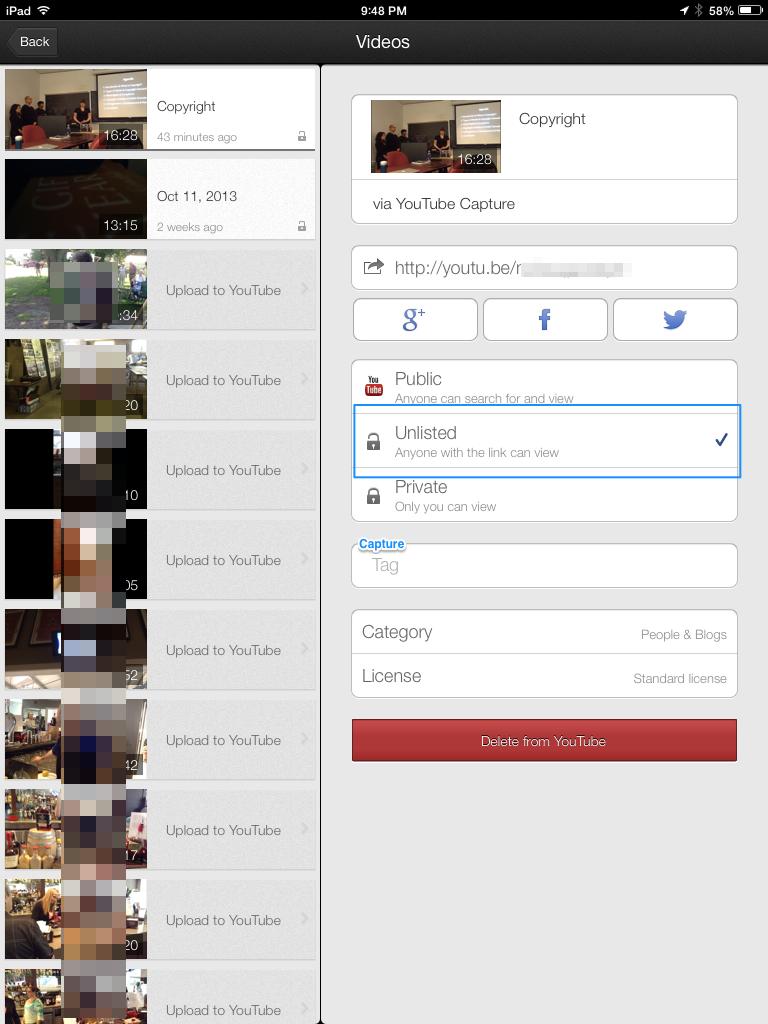
I have used videos before, but I always found porting the video to my computer and then uploading it to YouTube or Vimeo took many times longer than the video itself. I found it onerous. This time, I received my iPad back from my student videographer, and clicked “Upload”. This is the screen I saw:

Image

I chose the “Unlisted” posting, to give students their privacy. Only those with the link will be able to see the video. I use Wikispaces for my course container, and simply posted the link to the YouTube video of their presentation in their Project page, which only members of the group can access. I could have simply emailed the link out to them. Either way, they have control of the privacy level of their video. They can share the link, or not.

This process, using an iPad with the Capture app which is linked to YouTube, is so much easier than my previous process of uploading videos of student work, and I can give them privacy.

The New gMail Inbox’s Other Tabs

gMail has a new structure for its inbox. The Primary tab is the one that opens first and is the most important because it contains your personal messages – as described previously – https://joanvinallcox.wordpress.com/2013/08/21/gmails-new-inbox-tabs/

The Other Inbox Tabs

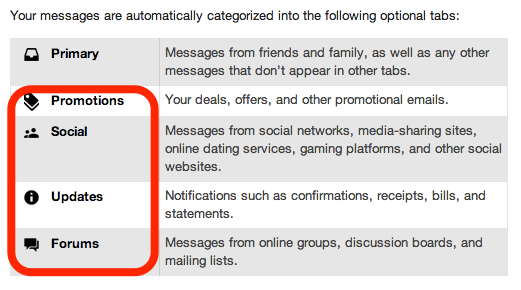
The slightly altered image below is from (and linked to) Google Support – https://support.google.com/mail/answer/3055016?hl=en

https://joanvinallcox.wordpress.com/2013/08/21/gmails-new-inbox-tabs/
The New gMail Inbox Tabs

As well as the Primary tab, there are Promotions, Social, Updates, and Forums. Depending on your web activities you may only need some of them. For example, if you have set up a Groupon account, or other promotional sites, those messages will automatically go under the Promotions tab.

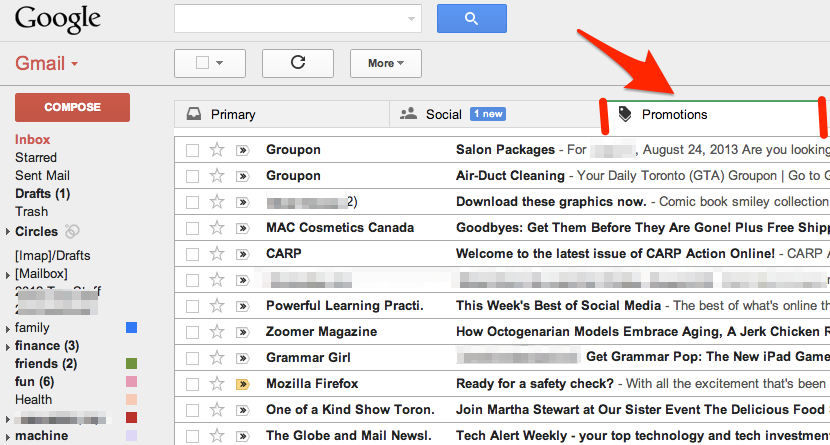
Here’s how it looks:

gMail Inbox's PromotionsTab
gMail Inbox’s Promotions Tab

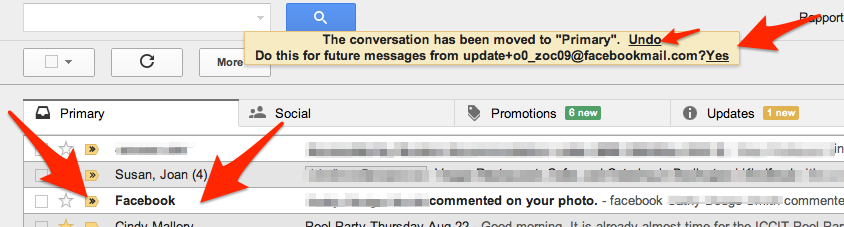
You can see the kind of messages that land in the Promotions tab. Remember, if you want messages from a particular source to land under a different tab, all you have to do is drag the message to the tab you want, and then, when “Do this for future messages …?” appears just above the tabs, choose “Yes”.

You may have noticed that I changed the order my tabs are in to suit my interests. I’m more interested in what comes in under my Social tab than what’s under my Promotions tab.

Another thing to notice, I have “1 new” message waiting in my Social tab. Each tab shows how many new messages are waiting for you there. Sometimes I want to know what’s in my Updates tab right away because I’m expecting a confirmation. Usually, I leave checking my Forums tab till I have some free time.

—–

Not finding the new tabbed inbox a good fit for you? I’ll blog about how to limit your tabs or even return to a single, tabless, inbox soon.

gMail’s New Inbox Tabs

What I like about having my mail automatically separated into 5 mailboxes:

Screen Shot 2013-08-21 at 12.02.03 PM

My Primary Inbox

I go there first to see all my personal email. It’s addressed to me. Google Help explains it well:

Primary Inbox
Primary Inbox

Moving Message from One Tab to Another

I’ve found I can pull emails from other tabs into my Primary Inbox and set them to always land there. This is good for my favorites:

For example, Facebook notifications automatically arrive in my Social tab. I can simply drag the message into my Primary Inbox, then choose “Yes” to have all my future Facebook notifications land in my Primary Inbox. Cool, eh?

Moving messages to my Primary Inbox

More soon on why the other Tabs are handy.

Earth Hour

I don’t know if I did it “right”. I turned off all my lights and my computer, but I didn’t unplug the microwave, or the clocks, or the tv (though it was off) but we had a candle lit and our wood stove going. most people on our street appeared to have lots of lights on, so we were maybe a bit better. It was lovely, though, to sit by the fire, with candlelight and just talk. We should do that more often.

Firefox’s App Tabs

So far my favorite discovery in Firefox 4 is the App Tabs

Firefox 4 App Tabs

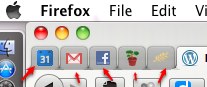
Each of the little red arrows point up to a “pinned tab” or a “app tab” residing to the left of the full tabs, and remaining there after Firefox has been closed and reopened. I can quickly and easily open my calendar, my mail, my Facebook, one of my wikis or the Hunger Site I like to click on every day.

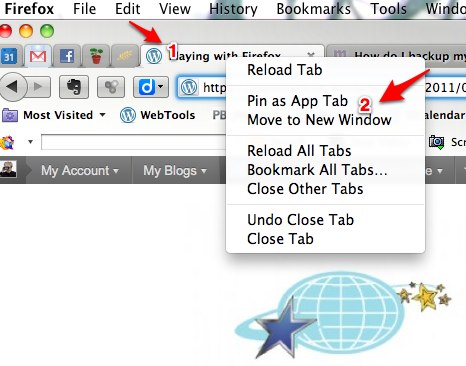
I add an app tab by right clicking (or 2 finger clicking) on the tab I want to “pin”, like so,

Firefox 4 Pinned Appand then clicking on “Pin as App Tab”. Couldn’t be easier!