Personal Web Environments

The online computer is essential in business and education today. It is also increasingly central to our family lives and personal economic life. People spend hours on the computer, sharing photos, keeping health and financial records, reading for news or entertainment, learning, and playing games. Having an effective and efficient Personal Web environment is essential for us all. One of the foundations for effective Web work (or play) is setting up your own

  • personal toolbar;
  • Favorites bar; or
  • Bookmarks bar.

Chose the name you want; they are all the same.

I first learned about how to use this feature of a Web browser from my friend, Janet, who works in a library. Using it is so easy and convenient that I have never looked back. In this post, I am going to introduce you to the IE version, because that is still the most used Web browser, but I will follow-up with a post about the slight difference to the way it works in the Firefox Web browser.

What is a

  • personal toolbar;
  • Favorites bar; or
  • Bookmarks bar?

Glad you asked.

A Personal/Favorites/Bookmarks Bar
ieFavBar
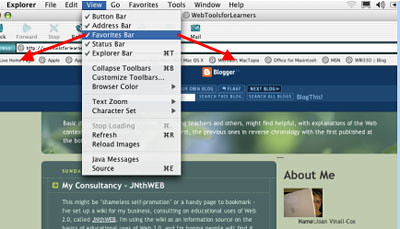
In the screenshot above, you can see the Favorites bar, and the View Menu that allows you to make it visible or hide it. This view of the Favorites bar still has the links it comes loaded with; you can see many Apple links (I work on an iBook) and, on the far right, a link to my academic blog on Elgg, the only link I have added so far.

Delete (or Move) Rarely Used Links

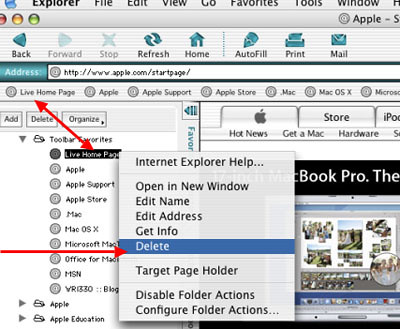
In the screenshot below, you can see 2 red arrows:

  • The double-headed arrow points a link on the Favorites bar and where it is listed in the Explorer bar (found under View in the Menu bar.)
  • The second red arrow points to “Delete” in the menu, which appeared when I right clicked (or you could hold down the “ctrl” button and use an ordinary left click.)

ieFavDel
That’s one of several ways to remove a link you don’t use very often from the Favorites bar. When I’m setting up a browser to be part of my Personal Web Environment, my first step is to clear the Favorites bar. The next step is to begin adding my frequently used Websites to the Favorites bar, where I will be able to quickly and easily click on them.

Adding to Your Favorites Bar
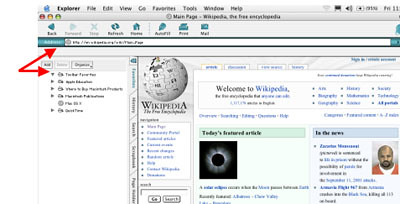
There are a number of ways to add sites to your personal bar. I have a favorite. First you go to the site you want on your personal bar, either by entering the URL (or Web address)or by using a search engine to find it. Got it up on your screen, like below?
ieFavWiki

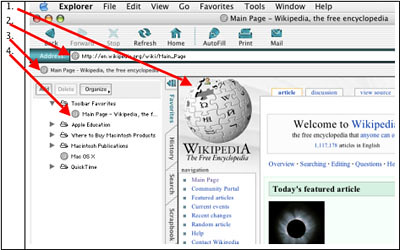
  • See the Address bar, the now empty Favorites bar, and the empty Favorites folder in the Explorer frame?
  • Now look at icon to the left of the url in the Address bar
  • Put your mouse cursor on it and hold down the left click button
  • Drag the icon down onto the Favorites bar. Notice that you can see a shadow image of the icon and the site title
  • Let go of the button while on the Favorites bar, and presto! – it now appears on your Favorites bar.

Benefits and Possibilities
When you add sites to your Favorites bar, you can easily click on them there and watch them open!
ieFavBar2
In the image above, arrows point to the Wikipedia Webpage, the Wikipedia url, the Wikipedia link on the Favorites bar, and the Wikipedia link in the Explorer frame. I can go on and add as many links as will fit across the Favorites bar (and beyond, as I’ll show in the next post with Firefox). Here’s the last bit for this post –

How to Shorten Web Link Names
ieFavName

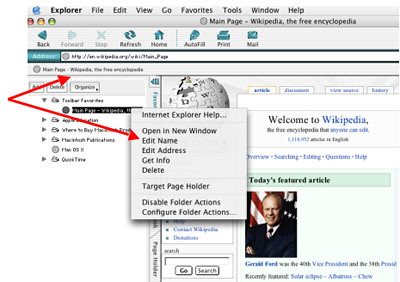
  • Right (or “ctrl”) click on the link, either in the Favorites frame or on the Favorites bar;
  • Up pops a menu;
  • Chose “Edit Name“;
  • Change the name to the shortest one you can easily recognize.

Now you can start building your Personal Web Environment by adding more of your frequesntly used Web sites.

Have fun!

tags


My Consultancy – JNthWEB

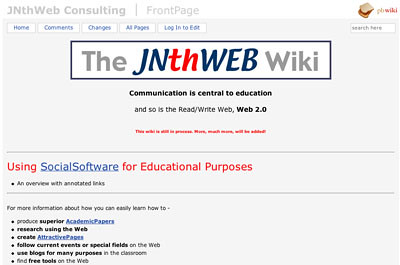
This might be “shameless self-promotion” or a handy page to bookmark – I’ve set up a wiki for my business, consulting on educational uses of Web 2.0, called JNthWEB. I’m using the wiki as an information source on the basics of educational uses of Web 2.0, and I’m hoping people will find it helpful.

I’m using pbwiki because I like the clean look that’s possible with it.
JNthWEB

Check it out; I hope you find it helpful!

tags


Browsers & Reading with RSS

Now that you’ve read and learned something about browser-decisions, using browsers, and, browser tabs, it’s time to learn about how to use what you can find with those browsers, and how to do it easily.

“RSS” can be a mysterious and intimidating code, but it’s really very simple – “Real Simple Syndication”, that is. Many blogs and websites have RSS or something similar called Atom, or some other less well-known technical trick, which you can find on their sites. For example, if you look to the right, immediately under “Links” – you can see the link I provide, called Subscribe to WebToolsForLearners. Other sites often have an icon that looks like this –
RSS
If you do an ordinary (right) click on it, you’ll see a page of techical gobbledegook, like this –
RSSpage
or a simpler, cleaner page if they’re using a service like Feedburner, as I do –
Feedburner
Basically, you ignore these pages. You left (or Apple) click on the RSS link, or whatever subscription link, copy the link, and then you go to an aggregator and paste it in. Before you can do that, though, you have to know what an aggregator is and have an account on one.

Kathleen Gilroy describes what aggregators are here – an excerpt –

With an aggregator, subscription channels are called RSS feeds. The “SS” in RSS stands for Site Summary because that is typically what a feed contains – a summary of what is on a blog or web site. When something new – an article, a photo, a podcast – is published, it automatically goes out in the RSS feed. If the aggregator is tuned – or to use RSS language, subscribed – to that feed, it collects whatever is in the feed. In terms of the user experience, RSS aggregators can be thought of as “Tivo” for your desktop. You subscribe to a set of channels through which information will flow. Aggregators can subscribe to feeds from every major media outlet and of course the huge blog universe. But feeds are not limited to blogs and news. Aggregators can also subscribe to a feed that lists the new books available at your library, or the latest changes to a company’s policy manual, or the houses for sale. A feed is just an envelope and the possibilities for what it can receive in that envelope are limitless.

There are many aggregators; TechCrunch supplies a list in this post.

I use Bloglines, a very popular aggregator that looks like this –
BloglinesSub
To suscribe to the blog or site I am interested in, I have clicked on “Add” (just under the Bloglines logo on the left) and I simply paste the RSS url I saved when I left (or Apple) clicked on a blog I want to read regularly. I paste it in on the right, where it is indicated. And the blog joins the list on the left, easily available for me to read when I go to Bloglines.

More about aggregators and how amazingly useful they are in a future post.

tags


Browser Tabs

Another post on browsers!

I like Firefox, Mozilla, and Safari better than IE, (Internet Explorer) because they have tabs and IE doesn’t, at least not yet. What are tabs, and why do I like them? Here’s a picture –
tabs
Using my Firefox browser, I have 3 tabs open, three different URLs are available to me at a click

– the lighter tab is the one I was on when I took this screenshot, WebToolsForLearners, this blog,

– plus my Elgg blog with my name showing, and

– an interesting blog, The Adventures of Accordian Guy, a Toronto blogger.

I can move back and forth between any of these without opening new pages. I can have more tabs, and, when I click on a link in Firefox, if it is set to open in a new page, it will open as another tab. I don’t get lost in a pile of open pages; I have them all laid out side-by-side.

What’s the point of having more than one URL open at the same time? Sometimes it’s useful when working on a project. Say I’m writing up a post, like now, and I decide I could communicate better if I showed a picture, I can go to File and open a new tab. Then I can go to my Bookmarks Toolbar and click on my bookmarked Flickr account and find the screenshot jpeg I uploaded earlier, get the size I want, and copy its URL. Then I click back into the tab with my my Blogger post and paste the URL into my post. Two tabs, two sites open, and moving back and forth between them.

Or I could be writing up something in Word, and want to look up a point in Wikipedia, and keep Dictionary.com open to check obscure word meanings – no problem – with tabs.

I have my Firefox set so it opens with two homepages, two tabs. There are lots of uses. Now, before I save this post, I’m going to add some Technorati tags. I never remember the HTML, so I’ll open a new tab, click on my bookmarked link to the Technorati page that gives my the HTML for tagging, click back into this tab, paste the HTML in, and then add the words of the tags. Back and forth – no problem.

And I get the links to add to my text the same way, using a tab opened beside my post workspace.

tags

Using Browsers – Works Best With …

After my last class I was talking to one of the computer-savvy students about some trouble I have having playing some of the audio files for the most recent class assignment. He told me that I should be using IE (Internet Explorer). He agreed that it wasn’t as good as FireFox in many ways, but it has an important strength. It is the most used, and most web applications are designed to work with IE while they aren’t always designed to work well on other browsers. So I’ve taken his advice and opened my IE so I can use it to listen to my students’ recordings of their narratives.

I accepted his advice because I respect his knowledge, and because I’ve stumbled against this problem myself more than once. I use a Mac platform, and I love my little iBook and OSX. And I really like Safari, the browser that came with it. But far fewer people use the Mac platform than use Windows and although most applications work quite well on the Mac platform, sometimes exclusively Mac
applications don’t get as much support. Here’s a small example.

Sometimes I forget to use Firefox for composing a Blogger post, and start doing it in Safari. This is not a good idea –
compBrow
As you can see, above, I get more Browser usability in Firefox than in Safari, so I like to use Firefox when I’m composing, like now.

My computer-savvy student also suggested I use Mozilla, which is connected with Firefox, but not as trendy or adaptable. I’ve always liked Mozilla, which is what Netscape morphed into, so I might re-download it. It has Composer, which is a free, really easy, really handy WYSIWYG webauthoring application.

The short story:
My current favorite browsers: Safari, Firefox & Mozilla. Sometimes I use IE.

tags


Academic Research is Changing!

Anyone who does academic research, or teaches others to do it, is facing a rapidly changing landscape.

From Educause,
via a feed in my Bloglines Account –

“The European Commission is to build a European digital library able to display around six million books, photographs and films and available to all internet users by 2010.”

US Internet search giant Google started an international race to build an online library when it announced plans in December 2004 to digitise books and documents from a handful of big libraries.

Since then, US Internet and software giants Yahoo, Microsoft and Amazon have announced separate plans while France, upset that private companies took the lead, has pushed for the creation of a public digital library, AFP reports.

Add this to other evolutions – such as I have posted on previously – and you’ll see that academic research has changed more since the arrival of the web than in the previous few hundred years!

tags


Browser Decisions

While you’re deciding which homepage is the most useful or satisfying, you might want to think about what browers you use. Yes, I used the plural. I strongly recommend that, whatever your platform, you have at least two browsers on your computer. The three following are free, and good.

Some browsers are better than others at certain thing and on certain systems. While most people just go with Internet Explorer, in my roamings through posts of the ed-tech part of the blogosphere, one particular browser keeps coming up, and that is Firefox.
Firefox

I’m not technically-oriented, so I want extreme ease of use. Firefox gives me that. The technically skilled like it because they can fiddle with it, making interesting changes and setting it up just the way they want. I did look at the Preferences, but I only made a few simple changes. Firefox is the browser I use most of the time. In a future post, I will explain why I recommend at least two browsers, and how you might use them.

One is not enough. My Mac laptop came with Safari on it. (BTW, Firefox works on any platform, Mac, Windows or Linux.)
Safari
Safari is a Mac browser, so if you’re a Windows person, skip the rest of this post and just download Firefox.

I like Safari; it’s fast and easy. However, because it is a Mac product and therefore has only a small part of the web populace, it doesn’t always get good support from some of the products. I always use Firefox when I’m writing anything on my Elgg blog because I have had Safari swallow posts or comments instead of posting them. Too much frustration. And Safari does warn me it’s unsupported when I forget and do Elgg work on it. So Safari is good for Mac users, but not fully complete because not all applications work well on it.

I have recently downloaded Camino
Camino
I haven’t played much with it but it is part of the Mozilla family, just like Firefox, but aimed at Mac users. It looks interesting, but I will have to play with it more.

So my main message is – have at least two browsers.

tags


Home Page Decisions

The web is huge and growing exponentially. That’s enough to turn off lots of people, or intimidate them. But there are some ways to manage your web experience, starting with what you use as your homepage.

Many people use a comercially created portal, such as Yahoo’s:
Yahoo

Some may set their homepage to a newspaper or some other news source, such as the CBC:
CBC

Many people set theirs to the institution or campany they work for –
UTM

While still others choose to use their own website or blog:
WebTools

Here are two more suggestions. If you have more that one blog or site, you might want to compile them using SuprGlu, as I have described here.
SuprGlu

Or you might want to aggregate all the important (to you) web pages and/or blogs and/or news sources using an aggregator like Bloglines, as I have described here.
Bloglines

All of these are choices for homepages to start you off when you join the web.

A brief note: Although Blogger can add photos, they don’t transfer to SuprGlu, so I use Flickr to put them in my Blogger blog, and then they transfer smoothly to other web pages.

tags


Research Tools

One of the big advantages of being a teacher is that you can learn from your students. In my Oral Rhetoric class last week, students gave presentations, and I learned something from each of them. Two tools I learned about, I must pass on to you. Anyone who is doing academic research, or showing others how to do academic research, needs to know about the following;
GoshMe
GoshMe is different from any search tool I’ve seen before. You put in your search topic, check off the areas that you want to look in, and then it gives you a list of Search Engines with the links each of them has found. I gave it a whirl, and found very different responses from when I simply used Google. I think it is a very powerful search tool. To find out more about this Brazilian initiative, check out GoshMe’s AboutUs page, especially the section on the Invisible Web.

The other tool Rizwan Choudary, Vibhuti Gupta, and Mehreen Hasan alerted me to in their presentation on research using the web was an aspect of Google Scholar I wasn’t aware of.
GoogleScholar
Not only can you use Google Scholar to search for academic papers and other research material, you can use it to search the databases of institutions you are associated with IF said institutions have made that arrangement with Google Scholar – see Support for Libraries. In Google Scholar Preferences, you can search for your institution, and, if it has agreed, you can set it as part of your preferences. A proviso and a positive:
1. You have to be able to access these databases already using your I.D.
2. It’s actually an easier and one-stop interface.
So, thanks to Rizwan, Vibhuti, and Mehreen, I can pass this information on to you.

tags