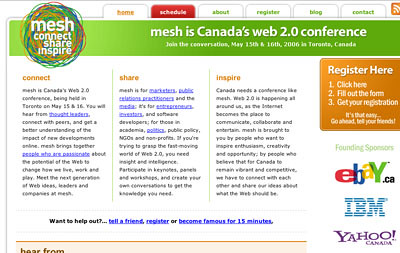
mesh – Day 2

Yesterday and today are my first experiences of blogging live. I just suffered my first lost post, when i lost a whole entry. Here’s the summary:
Steve Rubel spoke this morning about PR and blogging, with many questions and rich conversation. Will blogs make PR more honest, or will monetizing blogs lessen thier authenticity?

Stuart MacDonald was an excellent interviewer, guiding and following the conversation.

Next up is Paul Kedrosky, interviewed by Mathew Ingram about Web 2.0 and venture capitalism.

  • There seems to be a concentration of capital looking to venture, and Web 2.0 benefits, but if you can avoid taking it for your company, do so.
  • The starting of a business has been democratized, BUT then there are multiple starts doing the same sort of thing.
  • YouTube, as an example, do they have a business plan? Is this an early version of the future of TV.
  • Google started up with no real business model, and found their way, but lately they’re running up their capital expenditures.
  • The pendulum is swinging towards business in Web 2.0, for example, DabbleDB
  • Some examples of Web 2.0 businesses that are successful – PlentyOfFish – $15,000 a day
  • Seed investing is problematic in Canada – DFJ – almost uses seed marketing as PR, lots of overage for what it does
  • Venture capitalists – trouble choosing when to jump in, seed financing can be too soon, later can be too late.
  • How many ‘products’ are actually just features – Google’s recent media day on 3 features treated as amazing
  • Skype moved people towards VOIP
  • IPOs don’t exist any more, creating problems with exits (Don’t understand but that’s what he said.)
  • A preoccupation with AdSense, Google totally dominates in this single-payer system, but subscription can be a viable option
  • P&G spend 10% of their advertising budget on online, “nada”
  • TV commercialization starting to break down, some companies refusing to play in the competition
  • Canada much lower in numbers per capita basis in terms of looking for venture capital
  • We don’t see as many examples of people making money exiting their companies
  • Where do eastern Canadians go fort venture capitalism – Boston, Canadians …
  • Advice – think about the contingencies of your business before asking for VC, a real appetite now for investments

Good session. Next up – 15 Minutes of Fame

More Later.
tags


Blogging at Mesh

meshConf
Writing with passion. Yup!

Tris Hussey is talking about blogging – and his presentation is EXCELLENT – and/or I agree with what he says. The room is crowded; I was lucky to get a seat. Joey, Accordian Guy, is in the room too.

Qumana is a free blog editing tool that Tris is referencing, and it looks interesting; I’ll check it out later.

Blogs & Monitizing – Are ads the future? Does Google hold all the cards? Mark Evans suggests that blogs will federate and go to advertisers as groups. The money might come from branding, consulting, speaking etc. Someone suggests that the money made from blogs might come from the connections that result from your posts, with gigs and jobs coming to you.

Blogs could move into areas where people are used to paying – like education. I wonder if he is the guy from Nuvvo.

Now we’re talking about marketing and advertising and transparency.

“We’re all working for Google.” Even if you take something down – it’s still in the cache.

What about truth, opinion, and “blooging for evil”?
Who do you get to blog for your company? Webmaster, writer, team of developers, ….?

Good places to learn about blogs – books!

tags


Leonard Cohen Tribute Concert

P3300026
photo by Meryle Cox

Yesterday my daughter, Meryle, (who has performed some of his songs) and I (both fans) went to the Bay-Bloor Indigo bookstore for the Leonard Cohen Tribute Concert, with Anjani, Ron Sexsmith, and the Bare Naked Ladies. I’d won Front-of-the-Line tickets in an Indigo contest (thanks Heather) so we had great seating! It was wonderful.

Here’s a link to some of Meryle’s photos on my Flickr account – http://www.flickr.com/photos/shiftingsemiosis/sets/72057594134119688/

Ron Sexsmith knew all Cohen’s lyrics. He and Steven Page gave great support to Cohen, and Anjani was like a female version of Leonard Cohen. Leonard, himself, both read a poem and sang. I waved my vintage 1968 Leonard Cohen album cover. Sigh!

tags

Personal Web Environments

The online computer is essential in business and education today. It is also increasingly central to our family lives and personal economic life. People spend hours on the computer, sharing photos, keeping health and financial records, reading for news or entertainment, learning, and playing games. Having an effective and efficient Personal Web environment is essential for us all. One of the foundations for effective Web work (or play) is setting up your own

  • personal toolbar;
  • Favorites bar; or
  • Bookmarks bar.

Chose the name you want; they are all the same.

I first learned about how to use this feature of a Web browser from my friend, Janet, who works in a library. Using it is so easy and convenient that I have never looked back. In this post, I am going to introduce you to the IE version, because that is still the most used Web browser, but I will follow-up with a post about the slight difference to the way it works in the Firefox Web browser.

What is a

  • personal toolbar;
  • Favorites bar; or
  • Bookmarks bar?

Glad you asked.

A Personal/Favorites/Bookmarks Bar
ieFavBar
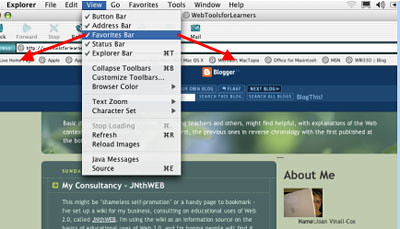
In the screenshot above, you can see the Favorites bar, and the View Menu that allows you to make it visible or hide it. This view of the Favorites bar still has the links it comes loaded with; you can see many Apple links (I work on an iBook) and, on the far right, a link to my academic blog on Elgg, the only link I have added so far.

Delete (or Move) Rarely Used Links

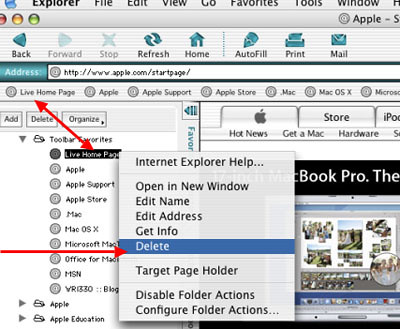
In the screenshot below, you can see 2 red arrows:

  • The double-headed arrow points a link on the Favorites bar and where it is listed in the Explorer bar (found under View in the Menu bar.)
  • The second red arrow points to “Delete” in the menu, which appeared when I right clicked (or you could hold down the “ctrl” button and use an ordinary left click.)

ieFavDel
That’s one of several ways to remove a link you don’t use very often from the Favorites bar. When I’m setting up a browser to be part of my Personal Web Environment, my first step is to clear the Favorites bar. The next step is to begin adding my frequently used Websites to the Favorites bar, where I will be able to quickly and easily click on them.

Adding to Your Favorites Bar
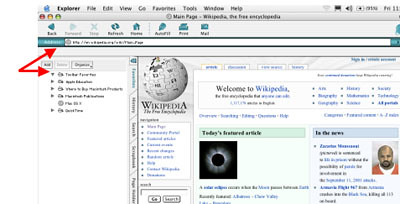
There are a number of ways to add sites to your personal bar. I have a favorite. First you go to the site you want on your personal bar, either by entering the URL (or Web address)or by using a search engine to find it. Got it up on your screen, like below?
ieFavWiki

  • See the Address bar, the now empty Favorites bar, and the empty Favorites folder in the Explorer frame?
  • Now look at icon to the left of the url in the Address bar
  • Put your mouse cursor on it and hold down the left click button
  • Drag the icon down onto the Favorites bar. Notice that you can see a shadow image of the icon and the site title
  • Let go of the button while on the Favorites bar, and presto! – it now appears on your Favorites bar.

Benefits and Possibilities
When you add sites to your Favorites bar, you can easily click on them there and watch them open!
ieFavBar2
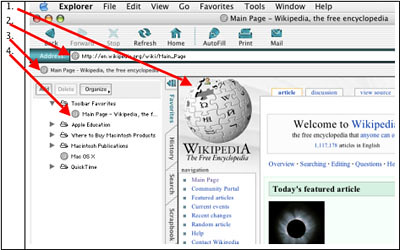
In the image above, arrows point to the Wikipedia Webpage, the Wikipedia url, the Wikipedia link on the Favorites bar, and the Wikipedia link in the Explorer frame. I can go on and add as many links as will fit across the Favorites bar (and beyond, as I’ll show in the next post with Firefox). Here’s the last bit for this post –

How to Shorten Web Link Names
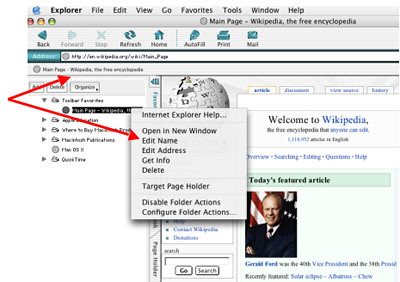
ieFavName

  • Right (or “ctrl”) click on the link, either in the Favorites frame or on the Favorites bar;
  • Up pops a menu;
  • Chose “Edit Name“;
  • Change the name to the shortest one you can easily recognize.

Now you can start building your Personal Web Environment by adding more of your frequesntly used Web sites.

Have fun!

tags


My Consultancy – JNthWEB

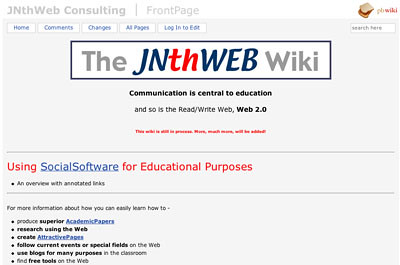
This might be “shameless self-promotion” or a handy page to bookmark – I’ve set up a wiki for my business, consulting on educational uses of Web 2.0, called JNthWEB. I’m using the wiki as an information source on the basics of educational uses of Web 2.0, and I’m hoping people will find it helpful.

I’m using pbwiki because I like the clean look that’s possible with it.
JNthWEB

Check it out; I hope you find it helpful!

tags


Browsers & Reading with RSS

Now that you’ve read and learned something about browser-decisions, using browsers, and, browser tabs, it’s time to learn about how to use what you can find with those browsers, and how to do it easily.

“RSS” can be a mysterious and intimidating code, but it’s really very simple – “Real Simple Syndication”, that is. Many blogs and websites have RSS or something similar called Atom, or some other less well-known technical trick, which you can find on their sites. For example, if you look to the right, immediately under “Links” – you can see the link I provide, called Subscribe to WebToolsForLearners. Other sites often have an icon that looks like this –
RSS
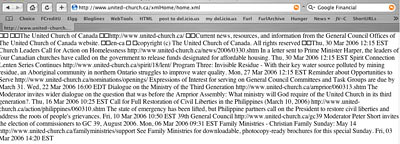
If you do an ordinary (right) click on it, you’ll see a page of techical gobbledegook, like this –
RSSpage
or a simpler, cleaner page if they’re using a service like Feedburner, as I do –
Feedburner
Basically, you ignore these pages. You left (or Apple) click on the RSS link, or whatever subscription link, copy the link, and then you go to an aggregator and paste it in. Before you can do that, though, you have to know what an aggregator is and have an account on one.

Kathleen Gilroy describes what aggregators are here – an excerpt –

With an aggregator, subscription channels are called RSS feeds. The “SS” in RSS stands for Site Summary because that is typically what a feed contains – a summary of what is on a blog or web site. When something new – an article, a photo, a podcast – is published, it automatically goes out in the RSS feed. If the aggregator is tuned – or to use RSS language, subscribed – to that feed, it collects whatever is in the feed. In terms of the user experience, RSS aggregators can be thought of as “Tivo” for your desktop. You subscribe to a set of channels through which information will flow. Aggregators can subscribe to feeds from every major media outlet and of course the huge blog universe. But feeds are not limited to blogs and news. Aggregators can also subscribe to a feed that lists the new books available at your library, or the latest changes to a company’s policy manual, or the houses for sale. A feed is just an envelope and the possibilities for what it can receive in that envelope are limitless.

There are many aggregators; TechCrunch supplies a list in this post.

I use Bloglines, a very popular aggregator that looks like this –
BloglinesSub
To suscribe to the blog or site I am interested in, I have clicked on “Add” (just under the Bloglines logo on the left) and I simply paste the RSS url I saved when I left (or Apple) clicked on a blog I want to read regularly. I paste it in on the right, where it is indicated. And the blog joins the list on the left, easily available for me to read when I go to Bloglines.

More about aggregators and how amazingly useful they are in a future post.

tags


Browser Tabs

Another post on browsers!

I like Firefox, Mozilla, and Safari better than IE, (Internet Explorer) because they have tabs and IE doesn’t, at least not yet. What are tabs, and why do I like them? Here’s a picture –
tabs
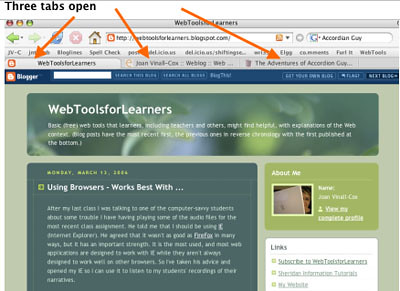
Using my Firefox browser, I have 3 tabs open, three different URLs are available to me at a click

– the lighter tab is the one I was on when I took this screenshot, WebToolsForLearners, this blog,

– plus my Elgg blog with my name showing, and

– an interesting blog, The Adventures of Accordian Guy, a Toronto blogger.

I can move back and forth between any of these without opening new pages. I can have more tabs, and, when I click on a link in Firefox, if it is set to open in a new page, it will open as another tab. I don’t get lost in a pile of open pages; I have them all laid out side-by-side.

What’s the point of having more than one URL open at the same time? Sometimes it’s useful when working on a project. Say I’m writing up a post, like now, and I decide I could communicate better if I showed a picture, I can go to File and open a new tab. Then I can go to my Bookmarks Toolbar and click on my bookmarked Flickr account and find the screenshot jpeg I uploaded earlier, get the size I want, and copy its URL. Then I click back into the tab with my my Blogger post and paste the URL into my post. Two tabs, two sites open, and moving back and forth between them.

Or I could be writing up something in Word, and want to look up a point in Wikipedia, and keep Dictionary.com open to check obscure word meanings – no problem – with tabs.

I have my Firefox set so it opens with two homepages, two tabs. There are lots of uses. Now, before I save this post, I’m going to add some Technorati tags. I never remember the HTML, so I’ll open a new tab, click on my bookmarked link to the Technorati page that gives my the HTML for tagging, click back into this tab, paste the HTML in, and then add the words of the tags. Back and forth – no problem.

And I get the links to add to my text the same way, using a tab opened beside my post workspace.

tags

Using Browsers – Works Best With …

After my last class I was talking to one of the computer-savvy students about some trouble I have having playing some of the audio files for the most recent class assignment. He told me that I should be using IE (Internet Explorer). He agreed that it wasn’t as good as FireFox in many ways, but it has an important strength. It is the most used, and most web applications are designed to work with IE while they aren’t always designed to work well on other browsers. So I’ve taken his advice and opened my IE so I can use it to listen to my students’ recordings of their narratives.

I accepted his advice because I respect his knowledge, and because I’ve stumbled against this problem myself more than once. I use a Mac platform, and I love my little iBook and OSX. And I really like Safari, the browser that came with it. But far fewer people use the Mac platform than use Windows and although most applications work quite well on the Mac platform, sometimes exclusively Mac
applications don’t get as much support. Here’s a small example.

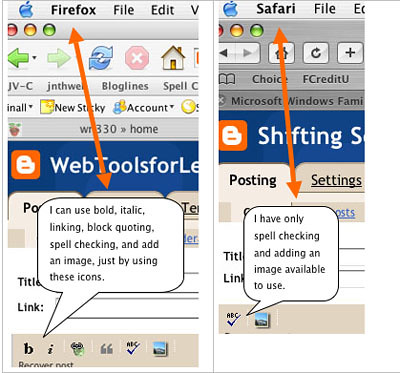
Sometimes I forget to use Firefox for composing a Blogger post, and start doing it in Safari. This is not a good idea –
compBrow
As you can see, above, I get more Browser usability in Firefox than in Safari, so I like to use Firefox when I’m composing, like now.

My computer-savvy student also suggested I use Mozilla, which is connected with Firefox, but not as trendy or adaptable. I’ve always liked Mozilla, which is what Netscape morphed into, so I might re-download it. It has Composer, which is a free, really easy, really handy WYSIWYG webauthoring application.

The short story:
My current favorite browsers: Safari, Firefox & Mozilla. Sometimes I use IE.

tags